# Storage Boxx PHP Wawi
# Installation
### Beschreibung:
Storageboxx installation in einen Docker container
### Vorrausetzung:
```
apt install docker.io docker-compose curl net-tools git
```
### Installation
Projektverzeichnis erstellen
```
mkdir -p /root/storageboxx/html
mkdir -p /root/storageboxx/db_data
```
Dockerfile erstellen, denn wir brauchen folgende Module drinnen
- Apache Mod Rewrite
- PHP MYSQL PDO Extension
- PHP OPENSSL Extension
```
nano /root/storageboxx/Dockerfile
```
Inhalt
```
# Ausgangsbild
FROM php:8.1-apache
# Aktivieren von Apache mod_rewrite
RUN a2enmod rewrite
# Installieren der PHP-Erweiterungen
RUN docker-php-ext-install pdo pdo_mysql
# Optional: Konfiguration anpassen, um .htaccess zu erlauben
RUN sed -i 's/AllowOverride None/AllowOverride All/' /etc/apache2/apache2.conf
# Setze Dateiberechtigungen (optional)
RUN chown -R www-data:www-data /var/www/html \
&& chmod -R 755 /var/www/html
# Exponiere den Standard-HTTP-Port
EXPOSE 80
# Apache neu starten (optional, falls benötigt)
CMD ["apache2-foreground"]
```
docker compose Datei erstellen
```
nano /root/storageboxx/docker-compose.yml
```
Inhalt
Die Passwörter abändern
```
version: '3.8'
services:
web:
build:
context: .
dockerfile: Dockerfile
container_name: storageboxx_web
ports:
- "80:80"
volumes:
- ./html:/var/www/html
environment:
- APACHE_DOCUMENT_ROOT=/var/www/html
depends_on:
- db
db:
image: mariadb:latest
container_name: storageboxx_db
restart: always
environment:
MYSQL_DATABASE: storageboxx
MYSQL_USER: user
MYSQL_PASSWORD: password
MYSQL_ROOT_PASSWORD: rootpassword
volumes:
- ./db_data:/var/lib/mysql
```
Nun das HTML Verzeichnis mit leben füllen, dazu clonen wir das git repo von storageboxx
```
cd /root/storageboxx/html
git clone https://github.com/code-boxx/Storage-Boxx-PHP-Inventory-Management-System.git
```
Nun in das Verzichnis gehen und alle Dateien eine ebene runter verschieben und dann das leere Verzeichnis löschen
```
cd Storage-Boxx-PHP-Inventory-Management-System
mv * ../
rm -r Storage-Boxx-PHP-Inventory-Management-System
```
Nun Berechtigung fürs Verzeichnis setzten:
```
chown -R www-data:www-data /root/storageboxx/html/
```
Dockerimage bauen
```
docker-compose build
```
Nun den Container starten
```
docker-compose up -d
```
Nun kann im Webbrowser die url zum installieren aufgerufen werden
http://<ip>
Nun die Daten eingeben und weiter
[](https://wiki.hacker-net.de/uploads/images/gallery/2024-09/wI812VGf6nzLKxlJ-auswahl-162.png)
Es gibt einen Error 500 Fehler.
[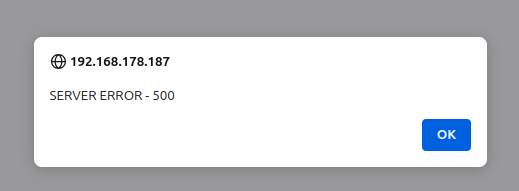](https://wiki.hacker-net.de/uploads/images/gallery/2024-09/HwYwHbezltLAHxxA-auswahl-165.png)
Die Seite einfach neu laden.
Dann kommt folgende Meldung, einfach auf click here klciken
[](https://wiki.hacker-net.de/uploads/images/gallery/2024-09/AHLJVydKV8uMbAy7-auswahl-163.png)
Nun haben wir die Anmelde Maske
[](https://wiki.hacker-net.de/uploads/images/gallery/2024-09/98WOr4CfvdCpSGDD-auswahl-164.png)
### Werkseinstellungen:
die html Dateien löschen und neuladen und die Datenbank löschen
```
rm -r /root/stoarageboxx/db_data/*
cd /root/storageboxx/html
rm -r *
git clone https://github.com/code-boxx/Storage-Boxx-PHP-Inventory-Management-System.git
cd Storage-Boxx-PHP-Inventory-Management-System
mv * ../
cd ..
rm -r Storage-Boxx-PHP-Inventory-Management-System
chown -R www-data:www-data /root/storageboxx/html/
```
# HTTPS hinzufügen
### Beschreibung:
Damit Push und Kamera funktioniert muss HTTPS benutzt werden.
### Implementierung:
alles stoppen
```
docker-compose down
```
docker file anpassen
In der docker-compose Datei nginx Container hinzufügen :
```
nano /root/storageboxx/docker-compose.yml
```
Unsere neue Docker file
```
version: '3.8'
services:
web:
build:
context: .
dockerfile: Dockerfile
container_name: storageboxx_web
#ports:
# - "80:80"
volumes:
- ./html:/var/www/html
- ./caddy_data:/data # Caddy benötigt diesen Ordner für seine Konfiguration
- ./caddy_config:/config # Caddy benötigt diesen Ordner für seine Konfiguration
environment:
- APACHE_DOCUMENT_ROOT=/var/www/html
depends_on:
- db
restart: unless-stopped
db:
image: mariadb:latest
container_name: storageboxx_db
restart: always
environment:
MYSQL_DATABASE: storageboxx
MYSQL_USER: user
MYSQL_PASSWORD: password
MYSQL_ROOT_PASSWORD: rootpassword
volumes:
- ./db_data:/var/lib/mysql
nginx:
image: nginx:stable
container_name: nginx-proxy
volumes:
- ./nginx-proxy.conf:/etc/nginx/nginx.conf:ro
- ./certs/selfsigned.crt:/etc/ssl/certs/selfsigned.crt:ro
- ./certs/private.key:/etc/ssl/private/private.key:ro
ports:
- "80:80"
- "443:443"
depends_on:
- web
restart: unless-stopped
```
Nun das cert Verzeichnis erstellen
```
mkdir -p /root/storageboxx/certs
```
Nun die ngninx conf erstellen
```
nano /root/storageboxx/nginx-proxy.conf
```
Inhalt
```
events {
worker_connections 1024;
}
http {
server {
listen 80;
return 301 https://$host$request_uri;
}
server {
listen 443 ssl;
ssl_certificate /etc/ssl/certs/selfsigned.crt;
ssl_certificate_key /etc/ssl/private/private.key;
location / {
proxy_pass http://web:80;
proxy_set_header Host $host;
proxy_set_header X-Real-IP $remote_addr;
proxy_set_header X-Forwarded-For $proxy_add_x_forwarded_for;
proxy_set_header X-Forwarded-Proto $scheme;
client_max_body_size 100M;
}
}
}
```
Nun das Zertifikat erstellen
```
openssl req -newkey rsa:4096 -x509 -sha256 -days 365000 -nodes -out /root/storageboxx/certs/selfsigned.crt -keyout /root/storageboxx/certs/private.key
```
Die Fragen benatworten.
Nun in der config von Storageboxx https ändern
```
nano /root/storageboxx/html/lib/CORE-Config.php
```
alt
```
autoCall("Items", "get"); ?>
```
Wir ändern diesen Abschnitt und fügen
Diesen Tag hinzu ans ende
```
desc:
```
Dann sieht die Zeile nun so aus
```
STOCK : desc:
```
Nun noch mal die Ganze geänderte Datei
```
autoCall("Items", "get"); ?>
```