Installation Docker
Beschreibung:
Firefly III installation via Docker
Voraussetzungen:
apt install curl docker.io docker-composeInstallation Docker instanz:
Projekt Verzeichnis anlegen
mkdir -p /root/firefly3/nginxCertfilescript anlegen und ausführen
nano /root/firefly3/generate_cert.sh#!/bin/bash
CERT_DIR="/root/firefly3/nginx/ssl"
mkdir -p $CERT_DIR
openssl req -x509 -nodes -days 36500 -newkey rsa:2048 \
-keyout $CERT_DIR/key.pem -out $CERT_DIR/cert.pem \
-subj "/C=US/ST=Example/L=Example/O=Example/CN=example.com"ausführbar machen
chmod +x /root/firefly3/generate_cert.shAusführen
cd /root/firefly3
./generate_cert.sh
Nun die nginx-config
nano /root/firefly3/nginx-proxy.confInhalt:
events {
  worker_connections 1024;
}

http {
  server {
    listen 80;
    return 301 https://$host$request_uri;
  }

  server {
    listen 443 ssl;
    ssl_certificate /etc/nginx/ssl/cert.pem;
    ssl_certificate_key /etc/nginx/ssl/key.pem;

    location / {
      proxy_pass http://app:8080;
      proxy_set_header X-Forwarded-Proto $scheme;
      proxy_set_header X-Forwarded-Host $host;
      proxy_set_header X-Forwarded-Server $host;
      proxy_set_header X-Forwarded-For $proxy_add_x_forwarded_for;
      proxy_set_header Host $host;
      # This line is optional and may help in some cases.
      # proxy_set_header X-Forwarded-Port $server_port;
      client_max_body_size 64M;
      proxy_read_timeout 300s;
    }
  }
}
.env Datei erstellen
nano /root/firefly3/.envInhalt, Datenbank Passwörter, Emaildaten und App URL anpassen.
# You can leave this on "local". If you change it to production most console commands will ask for extra confirmation.
# Never set it to "testing".
APP_ENV=production

# Set to true if you want to see debug information in error screens.
APP_DEBUG=false

# This should be your email address.
# If you use Docker or similar, you can set this variable from a file by using SITE_OWNER_FILE
# The variable is used in some errors shown to users who aren't admin.
SITE_OWNER=mail@example.com

# The encryption key for your sessions. Keep this very secure.
# Change it to a string of exactly 32 chars or use something like `php artisan key:generate` to generate it.
# If you use Docker or similar, you can set this variable from a file by using APP_KEY_FILE
#
# Avoid the "#" character in your APP_KEY, it may break things.
#
APP_KEY=SomeRandomStringOf32CharsExactly

# Firefly III will launch using this language (for new users and unauthenticated visitors)
# For a list of available languages: https://github.com/firefly-iii/firefly-iii/blob/main/config/firefly.php#L123
#
# If text is still in English, remember that not everything may have been translated.
DEFAULT_LANGUAGE=de_DE

# The locale defines how numbers are formatted.
# by default this value is the same as whatever the language is.
DEFAULT_LOCALE=equal

# Change this value to your preferred time zone.
# Example: Europe/Amsterdam
# For a list of supported time zones, see https://en.wikipedia.org/wiki/List_of_tz_database_time_zones
TZ=Europe/Berlin

# TRUSTED_PROXIES is a useful variable when using Docker and/or a reverse proxy.
# Set it to ** and reverse proxies work just fine.
TRUSTED_PROXIES=*

# The log channel defines where your log entries go to.
# Several other options exist. You can use 'single' for one big fat error log (not recommended).
# Also available are 'syslog', 'errorlog' and 'stdout' which will log to the system itself.
# A rotating log option is 'daily', creates 5 files that (surprise) rotate.
# A cool option is 'papertrail' for cloud logging
# Default setting 'stack' will log to 'daily' and to 'stdout' at the same time.
LOG_CHANNEL=stack

# Log level. You can set this from least severe to most severe:
# debug, info, notice, warning, error, critical, alert, emergency
# If you set it to debug your logs will grow large, and fast. If you set it to emergency probably
# nothing will get logged, ever.
APP_LOG_LEVEL=notice

# Audit log level.
# The audit log is used to log notable Firefly III events on a separate channel.
# These log entries may contain sensitive financial information.
# The audit log is disabled by default.
#
# To enable it, set AUDIT_LOG_LEVEL to "info"
# To disable it, set AUDIT_LOG_LEVEL to "emergency"
AUDIT_LOG_LEVEL=emergency

#
# If you want, you can redirect the audit logs to another channel.
# Set 'audit_stdout', 'audit_syslog', 'audit_errorlog' to log to the system itself.
# Use audit_daily to log to a rotating file.
# Use audit_papertrail to log to papertrail.
#
# If you do this, the audit logs may be mixed with normal logs because the settings for these channels
# are often the same as the settings for the normal logs.
AUDIT_LOG_CHANNEL=

#
# Used when logging to papertrail:
# Also used when audit logs log to papertrail:
#
PAPERTRAIL_HOST=
PAPERTRAIL_PORT=

# Database credentials. Make sure the database exists. I recommend a dedicated user for Firefly III
# For other database types, please see the FAQ: https://docs.firefly-iii.org/references/faq/install/#i-want-to-use-sqlite
# If you use Docker or similar, you can set these variables from a file by appending them with _FILE
# Use "pgsql" for PostgreSQL
# Use "mysql" for MySQL and MariaDB.
# Use "sqlite" for SQLite.
DB_CONNECTION=mysql
DB_HOST=db
DB_PORT=3306
DB_DATABASE=firefly
DB_USERNAME=firefly
DB_PASSWORD=secret_firefly_password
MYSQL_PASSWORD=secret_firefly_password
MYSQL_RANDOM_ROOT_PASSWORD=yes
MYSQL_USER=firefly
MYSQL_DATABASE=firefly
MARIADB_ROOT_PASSWORD=secret_firefly_password

# leave empty or omit when not using a socket connection
DB_SOCKET=

# MySQL supports SSL. You can configure it here.
# If you use Docker or similar, you can set these variables from a file by appending them with _FILE
MYSQL_USE_SSL=false
MYSQL_SSL_VERIFY_SERVER_CERT=true
# You need to set at least of these options
MYSQL_SSL_CAPATH=/etc/ssl/certs/
MYSQL_SSL_CA=
MYSQL_SSL_CERT=
MYSQL_SSL_KEY=
MYSQL_SSL_CIPHER=

# PostgreSQL supports SSL. You can configure it here.
# If you use Docker or similar, you can set these variables from a file by appending them with _FILE
PGSQL_SSL_MODE=prefer
PGSQL_SSL_ROOT_CERT=null
PGSQL_SSL_CERT=null
PGSQL_SSL_KEY=null
PGSQL_SSL_CRL_FILE=null

# For postgresql 15 and up, setting this to public will no longer work as expected, becasuse the
# 'public' schema is without grants. This can be worked around by having a super user grant those
# necessary privileges, but in security conscious setups that's not viable.
# You will need to set this to the schema you want to use.
PGSQL_SCHEMA=public

# If you're looking for performance improvements, you could install memcached or redis
CACHE_DRIVER=file
SESSION_DRIVER=file

# If you set either of the options above to 'redis', you might want to update these settings too
# If you use Docker or similar, you can set REDIS_HOST_FILE, REDIS_PASSWORD_FILE or
# REDIS_PORT_FILE to set the value from a file instead of from an environment variable

# can be tcp or unix. http is not supported
REDIS_SCHEME=tcp

# use only when using 'unix' for REDIS_SCHEME. Leave empty otherwise.
REDIS_PATH=

# use only when using 'tcp' or 'http' for REDIS_SCHEME. Leave empty otherwise.
REDIS_HOST=127.0.0.1
REDIS_PORT=6379

# Use only with Redis 6+ with proper ACL set. Leave empty otherwise.
REDIS_USERNAME=
REDIS_PASSWORD=

# always use quotes and make sure redis db "0" and "1" exists. Otherwise change accordingly.
REDIS_DB="0"
REDIS_CACHE_DB="1"

# Cookie settings. Should not be necessary to change these.
# If you use Docker or similar, you can set COOKIE_DOMAIN_FILE to set
# the value from a file instead of from an environment variable
# Setting samesite to "strict" may give you trouble logging in.
COOKIE_PATH="/"
COOKIE_DOMAIN=
COOKIE_SECURE=false
COOKIE_SAMESITE=lax

# If you want Firefly III to email you, update these settings
# For instructions, see: https://docs.firefly-iii.org/how-to/firefly-iii/advanced/notifications/#email
# If you use Docker or similar, you can set these variables from a file by appending them with _FILE
MAIL_MAILER=log
MAIL_HOST=null
MAIL_PORT=2525
MAIL_FROM=changeme@example.com
MAIL_USERNAME=null
MAIL_PASSWORD=null
MAIL_ENCRYPTION=null
MAIL_SENDMAIL_COMMAND=

#
# If you use self-signed certificates for your STMP server, you can use the following settings.
#
MAIL_ALLOW_SELF_SIGNED=false
MAIL_VERIFY_PEER=true
MAIL_VERIFY_PEER_NAME=true

# Other mail drivers:
# If you use Docker or similar, you can set these variables from a file by appending them with _FILE
MAILGUN_DOMAIN=
MAILGUN_SECRET=

# If you are on EU region in mailgun, use api.eu.mailgun.net, otherwise use api.mailgun.net
# If you use Docker or similar, you can set this variable from a file by appending it with _FILE
MAILGUN_ENDPOINT=api.mailgun.net

# If you use Docker or similar, you can set these variables from a file by appending them with _FILE
MANDRILL_SECRET=
SPARKPOST_SECRET=
MAILERSEND_API_KEY=

# Firefly III can send you the following messages.
SEND_ERROR_MESSAGE=true

# These messages contain (sensitive) transaction information:
SEND_REPORT_JOURNALS=true

# Set this value to true if you want to set the location of certain things, like transactions.
# Since this involves an external service, it's optional and disabled by default.
ENABLE_EXTERNAL_MAP=false

#
# Enable or disable exchange rate conversion.
#
ENABLE_EXCHANGE_RATES=false

# Set this value to true if you want Firefly III to download currency exchange rates
# from the internet. These rates are hosted by the creator of Firefly III inside
# an Azure Storage Container.
# Not all currencies may be available. Rates may be wrong.
ENABLE_EXTERNAL_RATES=false

# The map will default to this location:
MAP_DEFAULT_LAT=51.983333
MAP_DEFAULT_LONG=5.916667
MAP_DEFAULT_ZOOM=6

#
# Some objects have room for an URL, like transactions and webhooks.
# By default, the following protocols are allowed:
# http, https, ftp, ftps, mailto
#
# To change this, set your preferred comma separated set below.
# Be sure to include http, https and other default ones if you need to.
#
VALID_URL_PROTOCOLS=

#
# Firefly III authentication settings
#

#
# Firefly III supports a few authentication methods:
# - 'web' (default, uses built in DB)
# - 'remote_user_guard' for Authelia etc
# Read more about these settings in the documentation.
# https://docs.firefly-iii.org/how-to/firefly-iii/advanced/authentication/
#
# LDAP is no longer supported :(
#
AUTHENTICATION_GUARD=web

#
# Remote user guard settings
#
AUTHENTICATION_GUARD_HEADER=REMOTE_USER
AUTHENTICATION_GUARD_EMAIL=

#
# Firefly III generates a basic keypair for your OAuth tokens.
# If you want, you can overrule the key with your own (secure) value.
# It's also possible to set PASSPORT_PUBLIC_KEY_FILE or PASSPORT_PRIVATE_KEY_FILE
# if you're using Docker secrets or similar solutions for secret management
#
PASSPORT_PRIVATE_KEY=
PASSPORT_PUBLIC_KEY=

#
# Extra authentication settings
#
CUSTOM_LOGOUT_URL=

# You can disable the X-Frame-Options header if it interferes with tools like
# Organizr. This is at your own risk. Applications running in frames run the risk
# of leaking information to their parent frame.
DISABLE_FRAME_HEADER=false

# You can disable the Content Security Policy header when you're using an ancient browser
# or any version of Microsoft Edge / Internet Explorer (which amounts to the same thing really)
# This leaves you with the risk of not being able to stop XSS bugs should they ever surface.
# This is at your own risk.
DISABLE_CSP_HEADER=false

# If you wish to track your own behavior over Firefly III, set valid analytics tracker information here.
# Nobody uses this except for me on the demo site. But hey, feel free to use this if you want to.
# Do not prepend the TRACKER_URL with http:// or https://
# The only tracker supported is Matomo.
# You can set the following variables from a file by appending them with _FILE:
TRACKER_SITE_ID=
TRACKER_URL=

#
# Firefly III supports webhooks. These are security sensitive and must be enabled manually first.
#
ALLOW_WEBHOOKS=false

#
# The static cron job token can be useful when you use Docker and wish to manage cron jobs.
# 1. Set this token to any 32-character value (this is important!).
# 2. Use this token in the cron URL instead of a user's command line token that you can find in /profile
#
# For more info: https://docs.firefly-iii.org/how-to/firefly-iii/advanced/cron/
#
# You can set this variable from a file by appending it with _FILE
#
STATIC_CRON_TOKEN=PLEASE_REPLACE_WITH_32_CHAR_CODE

# You can fine tune the start-up of a Docker container by editing these environment variables.
# Use this at your own risk. Disabling certain checks and features may result in lots of inconsistent data.
# However if you know what you're doing you can significantly speed up container start times.
# Set each value to true to enable, or false to disable.

# Check if the SQLite database exists. Can be skipped if you're not using SQLite.
# Won't significantly speed up things.
DKR_CHECK_SQLITE=true

# Leave the following configuration vars as is.
# Unless you like to tinker and know what you're doing.
APP_NAME=FireflyIII
BROADCAST_DRIVER=log
QUEUE_DRIVER=sync
CACHE_PREFIX=firefly
PUSHER_KEY=
IPINFO_TOKEN=
PUSHER_SECRET=
PUSHER_ID=
DEMO_USERNAME=
DEMO_PASSWORD=

#
# Disable or enable the running balance column data
# Please disable this. It's a very experimental feature.
#
USE_RUNNING_BALANCE=false

#
# The v2 layout is very experimental. If it breaks you get to keep both parts.
# Be wary of data loss.
#
FIREFLY_III_LAYOUT=v1

#
# Which Query Parser implementation to use for the search engine and rules
# 'new' is experimental, 'legacy' is the classic one
#
QUERY_PARSER_IMPLEMENTATION=new

#
# Please make sure this URL matches the external URL of your Firefly III installation.
# It is used to validate specific requests and to generate URLs in emails.
#
APP_URL=http://localhost
docker-compose Datei erstellen
nano /root/firefly3/docker-compose.ymlInhalt
services:
  app:
    image: fireflyiii/core:latest
    hostname: app
    container_name: firefly_iii_core
    restart: always
    volumes:
      - ./firefly_iii_upload:/var/www/html/storage/upload
    env_file: .env
    networks:
      - firefly_iii
    ports:
      - 8080:8080
    depends_on:
      - db

  import:
    image: benkl/firefly-iii-fints-importer
    volumes:
      - ./data/configurations:/app/configurations
    ports:
      - 8081:8080
    networks:
      - firefly_iii

  db:
    image: mariadb:lts
    hostname: db
    container_name: firefly_iii_db
    restart: always
    env_file: .env
    networks:
      - firefly_iii
    volumes:
      - ./firefly_iii_db:/var/lib/mysql
  cron:
    #
    # To make this work, set STATIC_CRON_TOKEN in your .env file or as an environment variable
    # The STATIC_CRON_TOKEN must be *exactly* 32 characters long
    #
    image: alpine
    restart: always
    container_name: firefly_iii_cron
    env_file: .env
    command: sh -c "
      apk add tzdata && \
      ln -fs /usr/share/zoneinfo/$$TZ /etc/localtime && \
      echo \"0 3 * * * wget -qO- http://app:8080/api/v1/cron/$$STATIC_CRON_TOKEN;echo\"
      | crontab - && \
      crond -f -L /dev/stdout"
    networks:
      - firefly_iii
    depends_on:
      - app

  nginx:
      image: nginx:stable
      container_name: nginx-proxy
      volumes:
        - ./nginx-proxy.conf:/etc/nginx/nginx.conf:ro
        - ./nginx/ssl:/etc/nginx/ssl
      ports:
        - "80:80"
        - "443:443"
      depends_on:
        - app
      networks:
        - firefly_iii
      restart: always

networks:
  firefly_iii:
    driver: bridge
Der ertse start kann ein bisschen dauern bis zu ca 3 minuten. Einfach in den logs beobachten.
Aber erstmal starten
docker-compose up -dNun in die logs reinschauen
docker-compose logs appAusgabe zum schluss:
firefly_iii_core |       FireflyIII\Console\Commands\Upgrade\UpgradesDatabase::callInitialCommands()
firefly_iii_core |
firefly_iii_core |   [✓] Encryption keys have been created, nice!
firefly_iii_core | [2025-09-02 17:58:31] production.ERROR: SQLSTATE[HY000] [2002] php_network_getaddresses: getaddrinfo for db failed: Name or service not known (Connection: mysql, SQL: select * from `configuration` where `name` = db_version and `deleted_at` is null and `configuration`.`deleted_at` is null limit 1)
firefly_iii_core | [2025-09-02 17:58:31] production.ERROR: SQLSTATE[HY000] [2002] php_network_getaddresses: getaddrinfo for db failed: Name or service not known (Connection: mysql, SQL: select * from `configuration` where `name` = ff3_version and `deleted_at` is null and `configuration`.`deleted_at` is null limit 1)
firefly_iii_core |   [i] Updated version.
firefly_iii_core |   [✓] No security alerts for version 6.3.2
firefly_iii_core |
firefly_iii_core |               ______ _           __ _            _____ _____ _____
firefly_iii_core |              |  ____(_)         / _| |          |_   _|_   _|_   _|
firefly_iii_core |              | |__   _ _ __ ___| |_| |_   _       | |   | |   | |
firefly_iii_core |              |  __| | | '__/ _ \  _| | | | |      | |   | |   | |
firefly_iii_core |              | |    | | | |  __/ | | | |_| |     _| |_ _| |_ _| |_
firefly_iii_core |              |_|    |_|_|  \___|_| |_|\__, |    |_____|_____|_____|
firefly_iii_core |                                        __/ |
firefly_iii_core |                                       |___/
firefly_iii_core |        "Doesn't look like anything to me."
firefly_iii_core |
firefly_iii_core | +------------------------------------------------------------------------------+
firefly_iii_core | |                                                                              |
firefly_iii_core | | Thank you for installing Firefly III, v6.3.2!                                |
firefly_iii_core | | There are no extra installation instructions.                                |
firefly_iii_core | | Firefly III should be ready for use.                                         |
firefly_iii_core | |                                                                              |
firefly_iii_core | | Did you know you can support the development of Firefly III?                 |
firefly_iii_core | | You can donate in many ways, like GitHub Sponsors or Patreon.                |
firefly_iii_core | | For more information, please visit https://bit.ly/donate-to-Firefly-III      |
firefly_iii_core | |                                                                              |
firefly_iii_core | +------------------------------------------------------------------------------+
firefly_iii_core | [02-Sep-2025 17:58:33] NOTICE: fpm is running, pid 385
firefly_iii_core | [02-Sep-2025 17:58:33] NOTICE: ready to handle connections
firefly_iii_core | ✅ NGINX + PHP-FPM is running correctly.
Nun Konto erstellen über https://ip
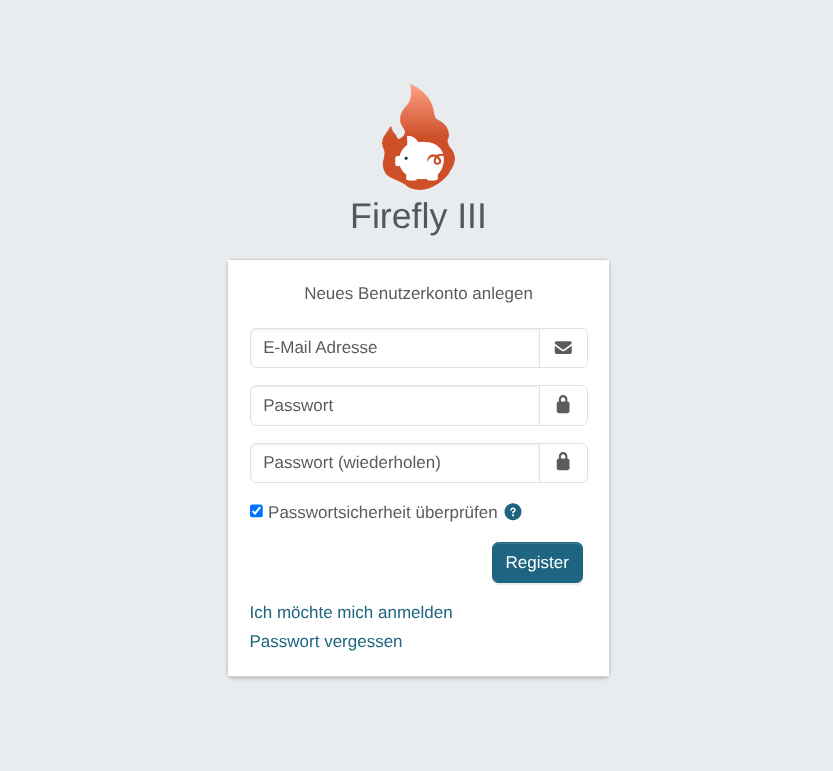
Nach dem Login ein Bankkonto anlegen.
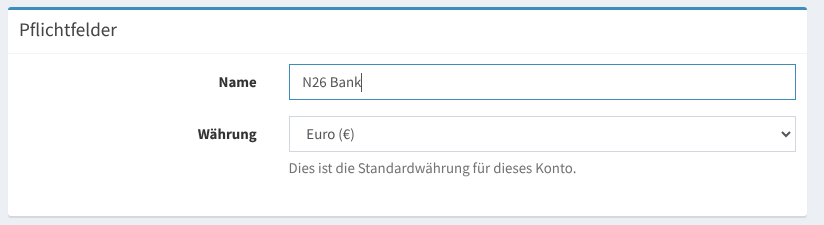
Fertig.
Bankkonto Importer Konfigurieren:
Wir haben in unserem Docker setup, den Container für Bankabgleich gleich mit eingebaut.
Die Konfiguration ist aufzurufen über http://ip:8081

Nun die Bankdaten ausfüllen:
URL rausbekommen und Bankunterstützung:
Hier eine Liste aller Banken mit FinTS-Zugang
Die URL bekommen wir mittels einen python tools raus Namens German Bank FinTS Url Finder:
ist per pip zu installieren
PIP Linux:
sudo apt install python3.11-venv
mkdir fintsurl
cd fintsurl
python -m venv .
source bin/activate
pip3 install fints-url
PIP Windows
pip install fints-url
oder
pip3 install fints-url
Benutzung:
-b ist die BLZ zum beispiel ing Diba
fints-url -b 50010517Ausgabe:
fints-url -b 50010517
https://fints.ing-diba.de/fints/
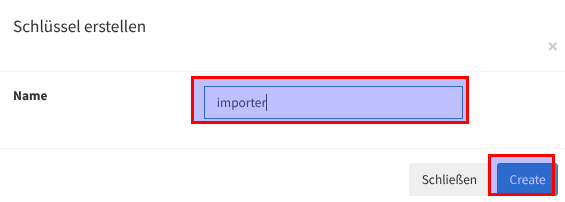
Nun brauchen wir noch den Access token aus dem Profil
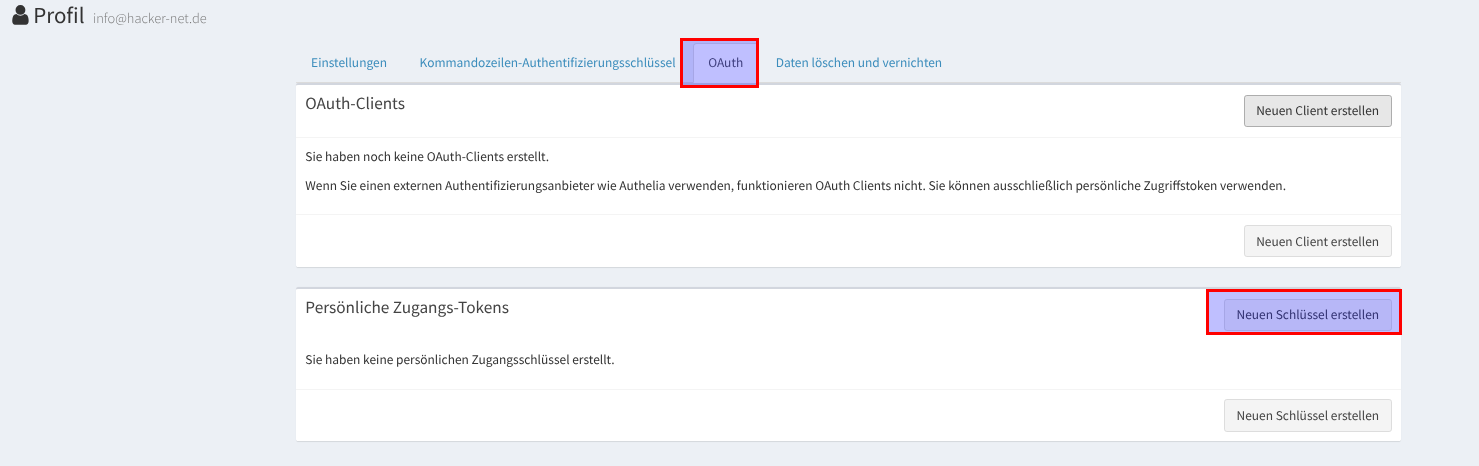
Nun namen vergeben create anklicken
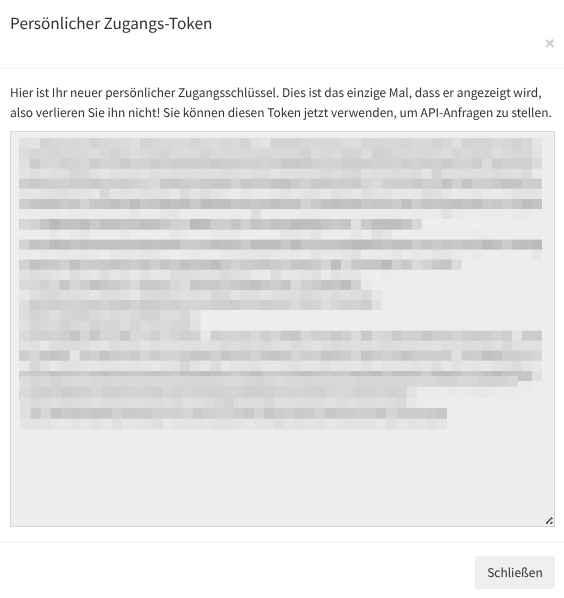
Der Token wird nur einmal angezeigt also kopieren und gut wegpacken
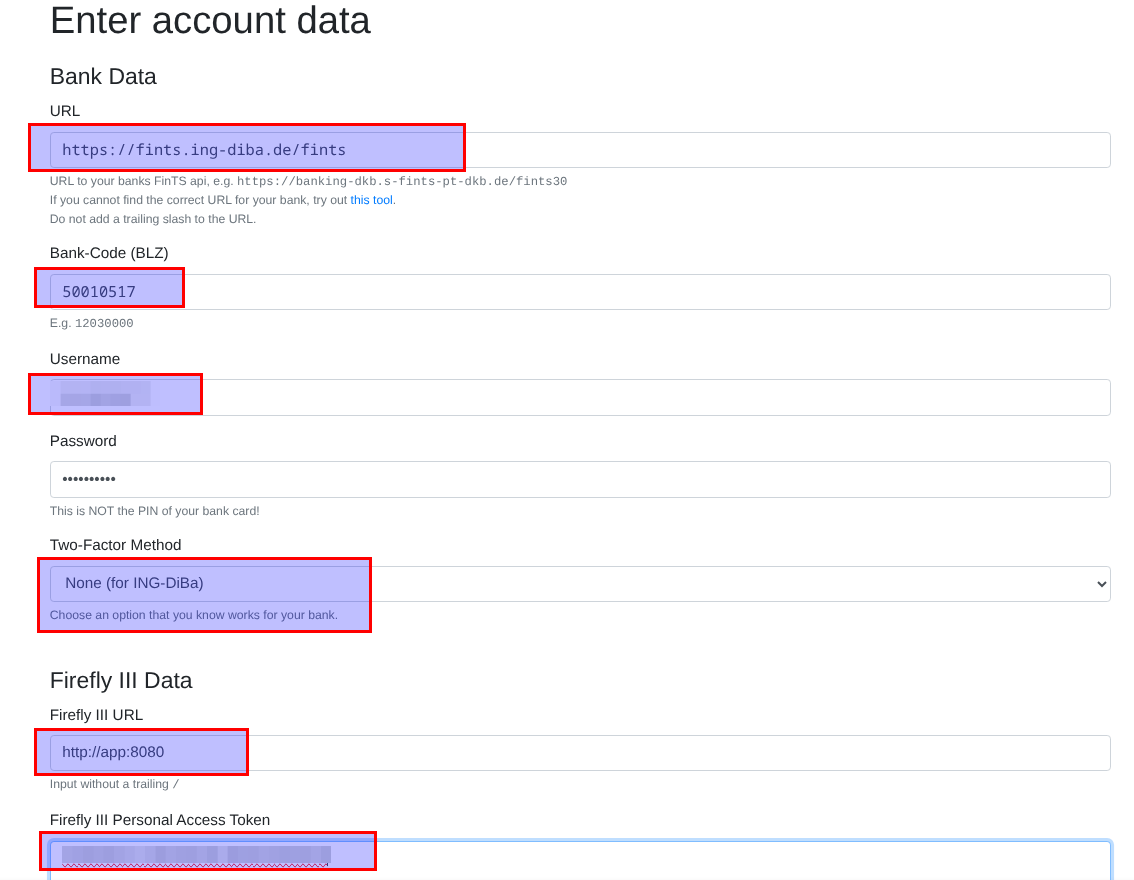
Die URL von fierfly aber im Dockernetz hier
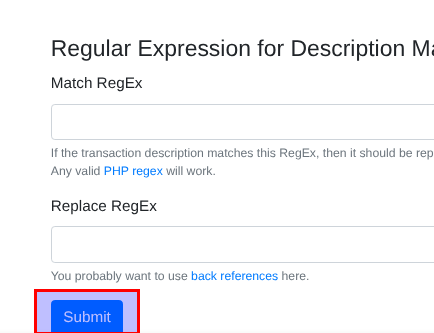
http://app:8080Nun können wir die Daten ausfüllen und auf Submit klicken
Nun wird gefragt mit welchem Bankkonto verknüpft werden soll.
Wenn im Online Banking mehrere Konten sind, das auswählen und dann das Konto in Firefly auswählen und den Zeitraum
Collect Statement anklicken.
WICHTIG! Das Enddatum merken, dann ein Tag danach wird das Start Datum fürs nächste mal!
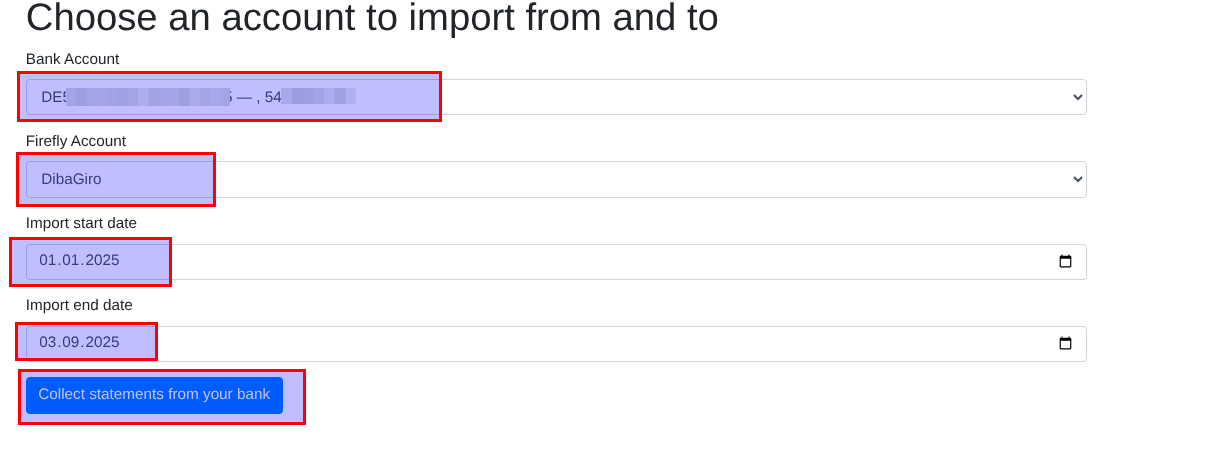
Nun wird ein Auschnitt angezeigt und dann auf import klicken.
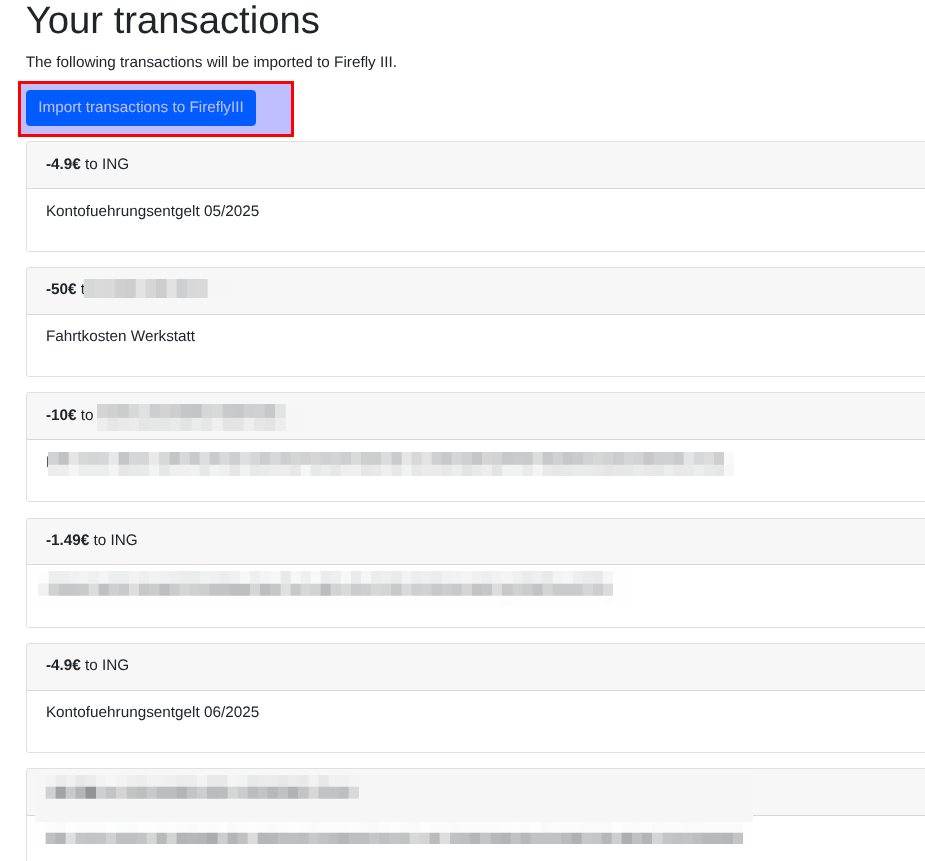
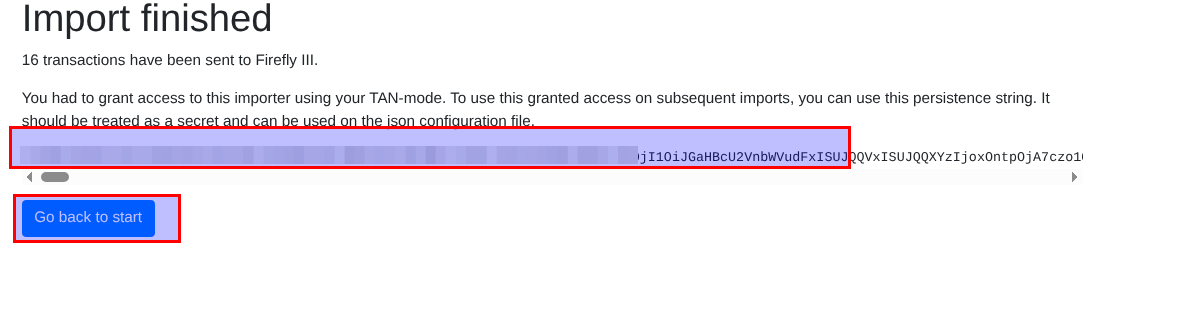
Import erfolgreich dort ist ein Meega langerschlüssel den abspeichern.
Der kann dazu benutzt werden, damit beim nächsten start nicht wieder alles neu gemacht werden muss