
Installation Docker mit MariaDB SSL Nextcloud AIO
Beschreibung:
Nextcloud installation via docker-compose script.
Wir nutzen für das Letsencrypt cert das image linuxserver/swag.
Dies ist ein image was letsencrypt und den nginx vereint
Installation
Vorbereitung
DNS-A/AAAA Record anlegen
Sobald die URL mit 8443 nach dem starten des Containers aufgerufen wird, wird wenn die DNS Records richtig gesetzt sind.
gleich ein gültiges Zertifikat von Lets Encrypt abgerufen. Ist das nicht geil? ;-)
Docker und Verzeichnisse anlegen
apt install docker.io docker-compose apparmor
mkdir -p /root/nextcloud/data
Die composer Datei
Hier nur folgendenWert abändern
environment: # Is needed when using any of the options below
  ...
  # - NEXTCLOUD_DATADIR=/mnt/ncdata
zu
 environment: # Is needed when using any of the options below
 ...
   - NEXTCLOUD_DATADIR=/root/nextcloud/data
Hier schon geändert nun einfach einfügen in
nano /root/nextcloud/docker-compose.ymlInhalt:
services:
  nextcloud-aio-mastercontainer:
    image: nextcloud/all-in-one:latest
    init: true
    restart: always
    container_name: nextcloud-aio-mastercontainer # This line is not allowed to be changed as otherwise AIO will not work correctly
    volumes:
      - nextcloud_aio_mastercontainer:/mnt/docker-aio-config # This line is not allowed to be changed as otherwise the built-in backup solution will not work
      - /var/run/docker.sock:/var/run/docker.sock:ro # May be changed on macOS, Windows or docker rootless. See the applicable documentation. If adjusting, don't forget to also set 'WATCHTOWER_DOCKER_SOCKET_PATH'!
    ports:
      - 80:80 # Can be removed when running behind a web server or reverse proxy (like Apache, Nginx, Cloudflare Tunnel and else). See https://github.com/nextcloud/all-in-one/blob/main/reverse-proxy.md
      - 8080:8080
      - 8443:8443 # Can be removed when running behind a web server or reverse proxy (like Apache, Nginx, Cloudflare Tunnel and else). See https://github.com/nextcloud/all-in-one/blob/main/reverse-proxy.md
    environment: # Is needed when using any of the options below
      # - AIO_DISABLE_BACKUP_SECTION=false # Setting this to true allows to hide the backup section in the AIO interface. See https://github.com/nextcloud/all-in-one#how-to-disable-the-backup-section
      # - APACHE_PORT=11000 # Is needed when running behind a web server or reverse proxy (like Apache, Nginx, Cloudflare Tunnel and else). See https://github.com/nextcloud/all-in-one/blob/main/reverse-proxy.md
      # - APACHE_IP_BINDING=127.0.0.1 # Should be set when running behind a web server or reverse proxy (like Apache, Nginx, Cloudflare Tunnel and else) that is running on the same host. See https://github.com/nextcloud/all-in-one/blob/main/reverse-proxy.md
      # - BORG_RETENTION_POLICY=--keep-within=7d --keep-weekly=4 --keep-monthly=6 # Allows to adjust borgs retention policy. See https://github.com/nextcloud/all-in-one#how-to-adjust-borgs-retention-policy
      # - COLLABORA_SECCOMP_DISABLED=false # Setting this to true allows to disable Collabora's Seccomp feature. See https://github.com/nextcloud/all-in-one#how-to-disable-collaboras-seccomp-feature
      # - NEXTCLOUD_DATADIR=/mnt/ncdata # Allows to set the host directory for Nextcloud's datadir. ⚠️⚠️⚠️ Warning: do not set or adjust this value after the initial Nextcloud installation is done! See https://github.com/nextcloud/all-in-one#how-to-change-the-default-location-of-nextclouds-datadir
      - NEXTCLOUD_DATADIR=/root/nextcloud/data
      - NEXTCLOUD_MOUNT=/mnt/ # Allows the Nextcloud container to access the chosen directory on the host. See https://github.com/nextcloud/all-in-one#how-to-allow-the-nextcloud-container-to-access-directories-on-the-host
      # - NEXTCLOUD_UPLOAD_LIMIT=10G # Can be adjusted if you need more. See https://github.com/nextcloud/all-in-one#how-to-adjust-the-upload-limit-for-nextcloud
      # - NEXTCLOUD_MAX_TIME=3600 # Can be adjusted if you need more. See https://github.com/nextcloud/all-in-one#how-to-adjust-the-max-execution-time-for-nextcloud
      # - NEXTCLOUD_MEMORY_LIMIT=512M # Can be adjusted if you need more. See https://github.com/nextcloud/all-in-one#how-to-adjust-the-php-memory-limit-for-nextcloud
      # - NEXTCLOUD_TRUSTED_CACERTS_DIR=/path/to/my/cacerts # CA certificates in this directory will be trusted by the OS of the nexcloud container (Useful e.g. for LDAPS) See See https://github.com/nextcloud/all-in-one#how-to-trust-user-defined-certification-authorities-ca
      # - NEXTCLOUD_STARTUP_APPS=deck twofactor_totp tasks calendar contacts notes # Allows to modify the Nextcloud apps that are installed on starting AIO the first time. See https://github.com/nextcloud/all-in-one#how-to-change-the-nextcloud-apps-that-are-installed-on-the-first-startup
      # - NEXTCLOUD_ADDITIONAL_APKS=imagemagick # This allows to add additional packages to the Nextcloud container permanently. Default is imagemagick but can be overwritten by modifying this value. See https://github.com/nextcloud/all-in-one#how-to-add-os-packages-permanently-to-the-nextcloud-container
      # - NEXTCLOUD_ADDITIONAL_PHP_EXTENSIONS=imagick # This allows to add additional php extensions to the Nextcloud container permanently. Default is imagick but can be overwritten by modifying this value. See https://github.com/nextcloud/all-in-one#how-to-add-php-extensions-permanently-to-the-nextcloud-container
      # - NEXTCLOUD_ENABLE_DRI_DEVICE=true # This allows to enable the /dev/dri device in the Nextcloud container. ⚠️⚠️⚠️ Warning: this only works if the '/dev/dri' device is present on the host! If it should not exist on your host, don't set this to true as otherwise the Nextcloud container will fail to start! See https://github.com/nextcloud/all-in-one#how-to-enable-hardware-transcoding-for-nextcloud
      # - NEXTCLOUD_KEEP_DISABLED_APPS=false # Setting this to true will keep Nextcloud apps that are disabled in the AIO interface and not uninstall them if they should be installed. See https://github.com/nextcloud/all-in-one#how-to-keep-disabled-apps
      # - TALK_PORT=3478 # This allows to adjust the port that the talk container is using. See https://github.com/nextcloud/all-in-one#how-to-adjust-the-talk-port
      # - WATCHTOWER_DOCKER_SOCKET_PATH=/var/run/docker.sock # Needs to be specified if the docker socket on the host is not located in the default '/var/run/docker.sock'. Otherwise mastercontainer updates will fail. For macos it needs to be '/var/run/docker.sock'
    # networks: # Is needed when you want to create the nextcloud-aio network with ipv6-support using this file, see the network config at the bottom of the file
      # - nextcloud-aio # Is needed when you want to create the nextcloud-aio network with ipv6-support using this file, see the network config at the bottom of the file
    # # Uncomment the following line when using SELinux
    # security_opt: ["label:disable"]

  # # Optional: Caddy reverse proxy. See https://github.com/nextcloud/all-in-one/blob/main/reverse-proxy.md
  # # You can find further examples here: https://github.com/nextcloud/all-in-one/discussions/588
  # caddy:
  #   image: caddy:alpine
  #   restart: always
  #   container_name: caddy
  #   volumes:
  #     - ./Caddyfile:/etc/caddy/Caddyfile
  #     - ./certs:/certs
  #     - ./config:/config
  #     - ./data:/data
  #     - ./sites:/srv
  #   network_mode: "host"

volumes: # If you want to store the data on a different drive, see https://github.com/nextcloud/all-in-one#how-to-store-the-filesinstallation-on-a-separate-drive
  nextcloud_aio_mastercontainer:
    name: nextcloud_aio_mastercontainer # This line is not allowed to be changed as otherwise the built-in backup solution will not work

# # Optional: If you need ipv6, follow step 1 and 2 of https://github.com/nextcloud/all-in-one/blob/main/docker-ipv6-support.md first and then uncomment the below config in order to activate ipv6 for the internal nextcloud-aio network.
# # Please make sure to uncomment also the networking lines of the mastercontainer above in order to actually create the network with docker-compose
# networks:
#   nextcloud-aio:
#     name: nextcloud-aio # This line is not allowed to be changed as otherwise the created network will not be used by the other containers of AIO
#     driver: bridge
#     enable_ipv6: true
#     ipam:
#       driver: default
#       config:
#         - subnet: fd12:3456:789a:2::/64 # IPv6 subnet to use
Nun den Container mit
docker-compose up -dstarten
Nun kann man mit
docker-compose logs -f nextcloud-aio-mastercontainerIn die Logs schauen
Wenn da steht:
 normal operations
nextcloud-aio-mastercontainer    | [Thu Apr 04 20:19:11.145314 2024] [core:notice] [pid 107:tid 140479721929480] AH00094: Command line: 'httpd -D FOREGROUND'
nextcloud-aio-mastercontainer    | {"level":"info","ts":1712261951.1497495,"msg":"using provided configuration","config_file":"/Caddyfile","config_adapter":""}
nextcloud-aio-mastercontainer    | [04-Apr-2024 20:19:11] NOTICE: fpm is running, pid 113
nextcloud-aio-mastercontainer    | [04-Apr-2024 20:19:11] NOTICE: ready to handle connections

Ready for connection, können wir uns verbinden
Sicher gehen das die DNS Einträge schon funktionieren, nach dem anlegen ca 30 Minuten warten.
https://meinedomain.example.com:8443
Nun kommt ein Passwort, gut merken bzw rauskopieren.
Wird nur einmal angezeigt und dann auf die Fläche zum starten klicken
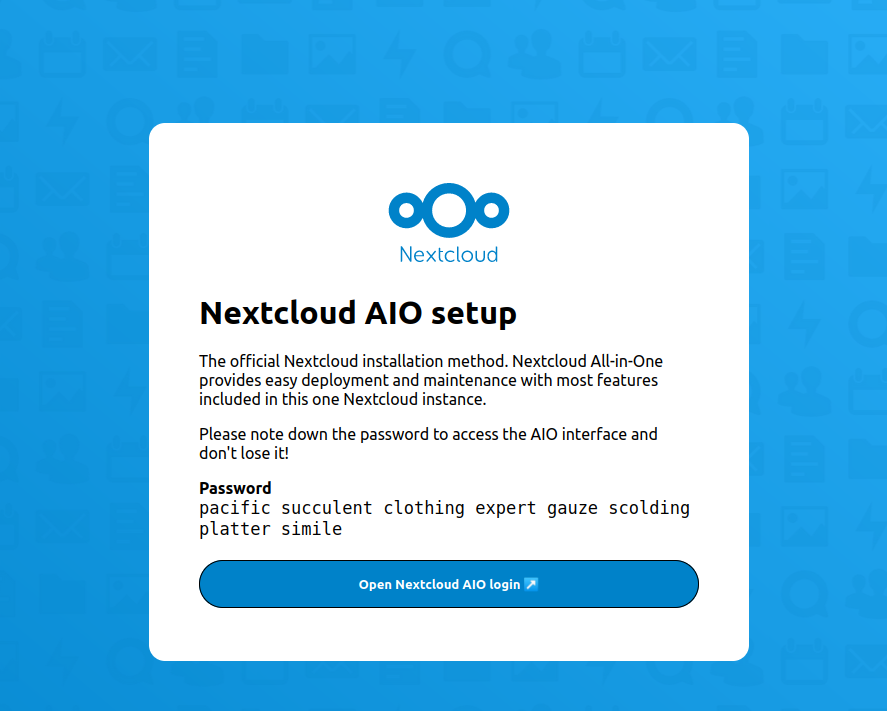
Nun das Kennwort eingeben, was wir gerade kopiert haben
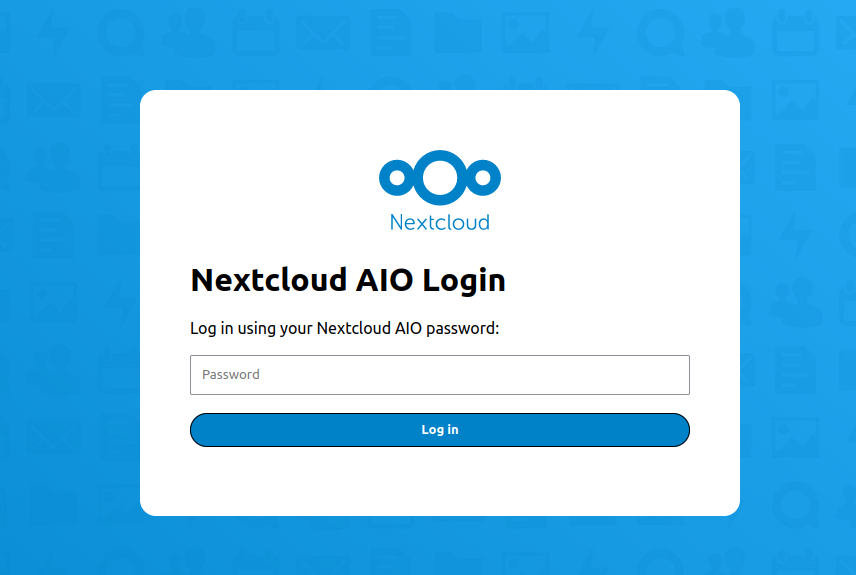
Nun kann es sein das er endlos kringelt.
Dann die Seite nochmal aufrufen und Kennwort nochmal eingeben
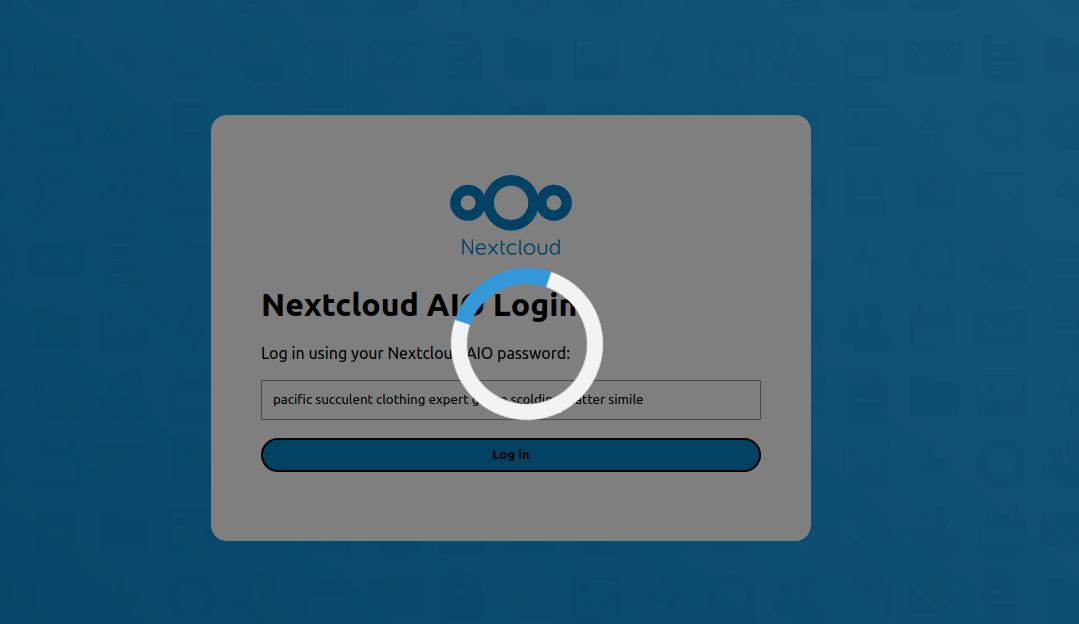
Nun den Domain namen angeben z.b nextcloud.example.com und dann auf submit Domain klicken
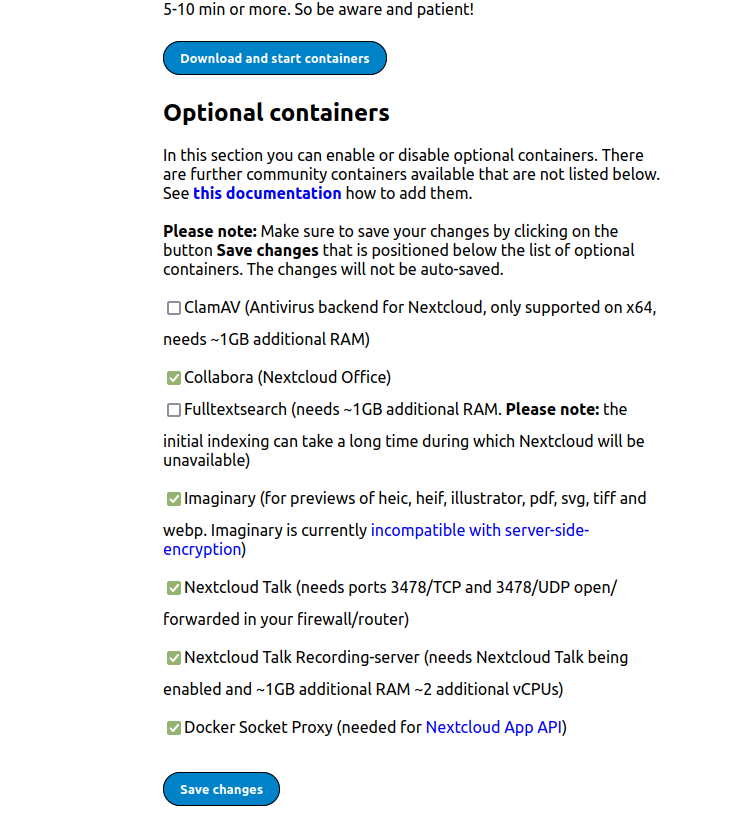
Nun kann ausgewählt werden welche Komponenten man installiert haben möchte.
Wenn man noch welche dazu wählt,auf save changes klicken.
Nun auf Download und start containers klicken
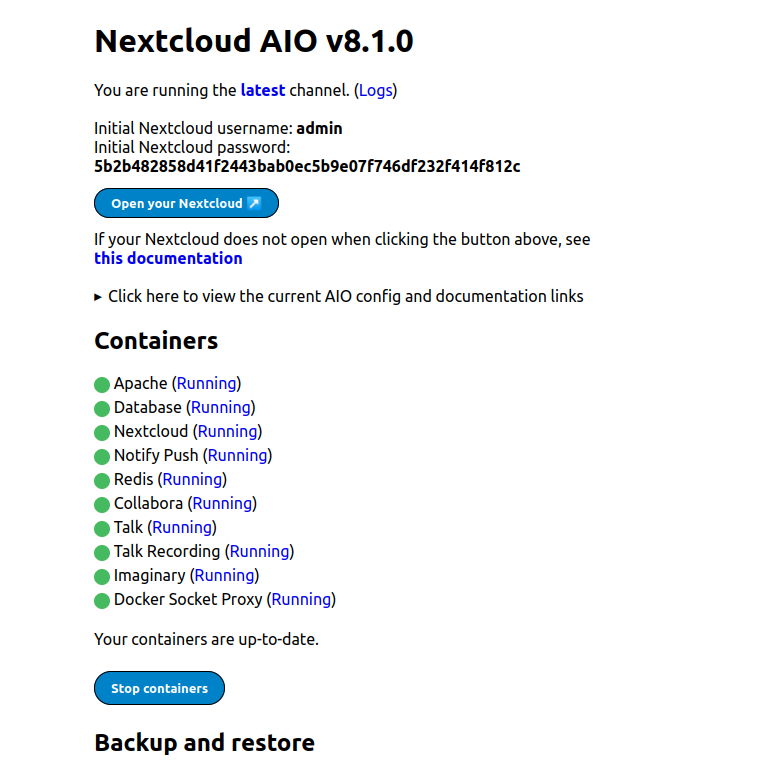
Nach der installation, wird einmal das Admin Kennwort für die Cloud angezeigt.
Danach kann über open your Nextcloud die Nextcloud betrieben werden.
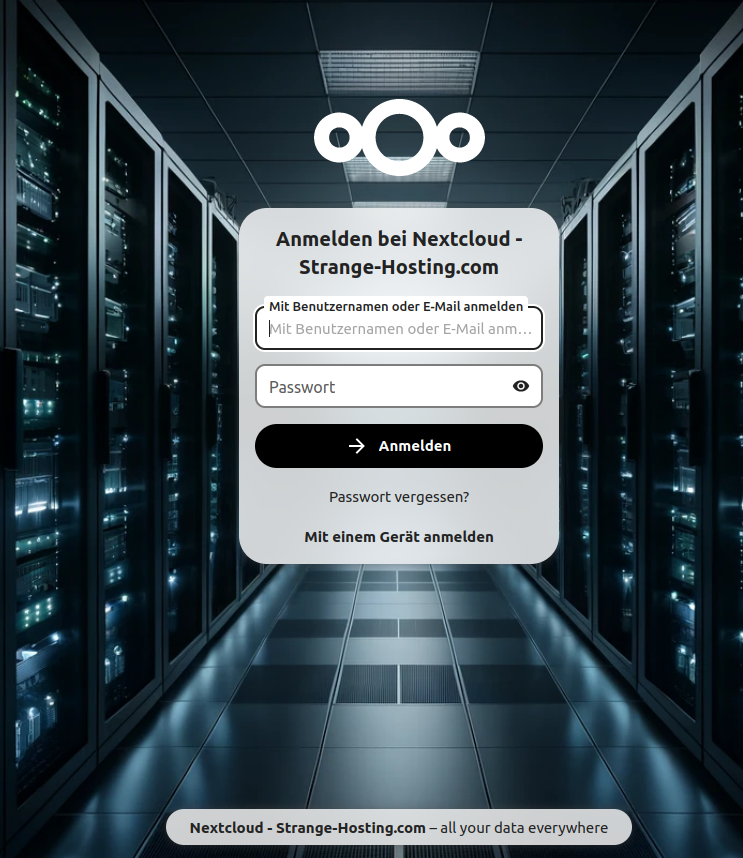
Nun kann man sich einloggen. In diesem Bild hab ich unter Einstellungen schon ein neues Hintergrundsbild gewählt
Hinweise:
Ports:
So komisch das auch klingt, port 443 muss nicht in der Docker Compose eingetragen werden, das macht der Container nachher selbst. Denn es werden noch weitere Container installiert.
Die Compose Datei
In der Compose Datei ist nur ein Container drin, dieser Container erstellt aber weitere Container.
Mit compose down. Wird nur der Container in der Compose Dateie beendet
Container beenden
docker-compose down
docker stop $(docker ps -a -q)
Container löschen
Hinweis: Container lassen sich nur löschen wenn sie nicht laufen
docker rm $(docker ps -a -q)Backup und Restore
coming soon.